

Are you struggling with spam submissions, fake leads, or unverified users on your WordPress contact forms? Do you want to add an extra layer of security to keep these activities at bay without hurting user experience?
I have faced frustrating issues on one of my WordPress websites with constant spam submissions and fake inquiries through the contact form. Despite using standard CAPTCHA verification, the problem persisted.
As it was affecting both data quality and response time, I needed a solution that could verify real users without creating friction for genuine visitors.
While searching for a reliable OTP verification plugin, I found a verified forms submissions plugin for WordPress. This security extension caught my attention as it works seamlessly with the contact forms.
In this review, I’ll tell what the Authyo OTP for contact form 7 plugin does, its key features, settings, and whether it’s worth using to protect your WordPress forms.
Before getting into the details, let me tell you the benefits of implementing the OTP verification method in contact forms.
Disclosure: We get a commission when you buy a product via our affiliate link at no additional cost.
Table Of Contents
Importance Of Implementing OTP Verification In Contact Forms
Implementing OTP verification for a website’s contact form ensures that submissions come from genuine users, rather than bots or spammers.
By verifying a user’s phone number or email before the form is submitted, OTPs significantly reduce spam messages and fake inquiries.
Since OTPs confirm ownership of the provided contact details, follow-ups become more effective and reliable, which in turn improves the quality of leads.
CAPTCHA is good for basic protection, but it can frustrate users and is sometimes bypassed by bots. However, the OTP method confirms real contacts and offers stronger spam prevention
For high-value forms, OTP verification is the best choice! Now, let’s get into the review of the Authyo WordPress plugin.
Authyo OTP For Contact Form 7 Plugin – Overview
Authyo OTP for contact form 7 is a versatile WordPress plugin designed to execute robust OTP (One-Time Password) verification to the website’s forms. Whether you’re using Contact Form 7, WPForms, or WooCommerce, this plugin enables you to validate users through OTP sent via email or SMS so that you can stop spam, prevent fake submissions, and increase trust in user-generated data.
With an intuitive setup and seamless integration, this contact form spam prevention plugin works behind the scenes to ensure that every form submission comes from a real person. It supports multiple platforms and use cases, making it an ideal choice for bloggers, businesses, and e-commerce site owners who want to incorporate a secure form without compromising the user experience.
Admirable Features
Here are the main features that make this form submission verification plugin stand out:
1. OTP Verification for Forms – Adds one-time password (OTP) verification fields to your WordPress forms to ensure only verified users can submit.
2. Multi-Channel OTP Delivery – For WordPress Forms it offers SMS, WhatsApp, and Voice Call options for phone OTPs.
3. OTP Message Report – You can tailor the messages shown to users when an OTP is sent, verified, or fails.
4. Seamless API Integration – Connects with the Authyo API to securely send and verify OTPs, ensuring robust authentication flows.
5. Form Redirect Options – For contact forms, you can set a custom redirect URL after successful OTP verification and form submission.
Another Features of Authyo Woocommerce Plugin
6. WooCommerce Authentication – Enables OTP-based login and checkout verification. So, users can log in or purchase using just an OTP without a password.
7. Mobile-First Login & Security – WooCommerce variant supports login and verification via users’ mobile numbers, which streamlines authentication and reduces friction.
8. Passwordless Login Support – For WooCommerce, the plugin allows you to replace traditional passwords with OTPs instead.
How to Install and Set Up The Plugin?
Authyo has three WordPress plugins. Here, I’m explaining the procedure with the “Authyo OTP for contact 7 form” plugin. Setting up the plugin is straightforward:
Step 1: Install Authyo OTP for contact form 7 from the WordPress plugin repository and activate it.
Step 2: Create an Authyo account; you will get the OTP verification to your email/phone while creating the account.

Step 3: Visit the Authyo Dashboard; Look at the left menu options to create your Application.

Note – When a user registers on Authyo, a default application is automatically created. There is no need to manually create an application manually. Users can simply copy and paste the three required API keys from the default application into the plugin settings and start using the plugin right away.
All settings such as OTP length, expiration time, and other related configurations can be fully customized directly from the WordPress plugin Verification Methods tab. Since these options are managed within WordPress, the additional configuration screenshot can be removed, making the installation process and plugin workflow shorter, easier, and more user-friendly.
Step 4: Select the Auth types for OTP verification
To send OTP through all selected channels at the same time, you have to enable “send OTP to all selected channels simultaneously,” and you can assign priority levels to each channel. If the first method fails, the next one will be used automatically.
After picking your preferred choices with the priority level, click “Next” to continue.
Step 5: Now you need to set
- Expiration time for OTP
- Delete authentication log
- OTP length
- Session duration
You can also upload your brand logo here. Once all details are entered, press the “Create” option to save the application.
Step 6: Now, you can see that the ”App Id”, “Client ID” and “Client Secret” have been created. You have to copy these all 3 credentials and paste them into the plugin settings.

Visit WordPress Dashboard > Authyo OTP for CF7 > General
Click “Save Changes” to successfully connect the plugin with your account.
Step 7: Next, go to the “Verification Methods” tab and choose how users will receive the OTP.
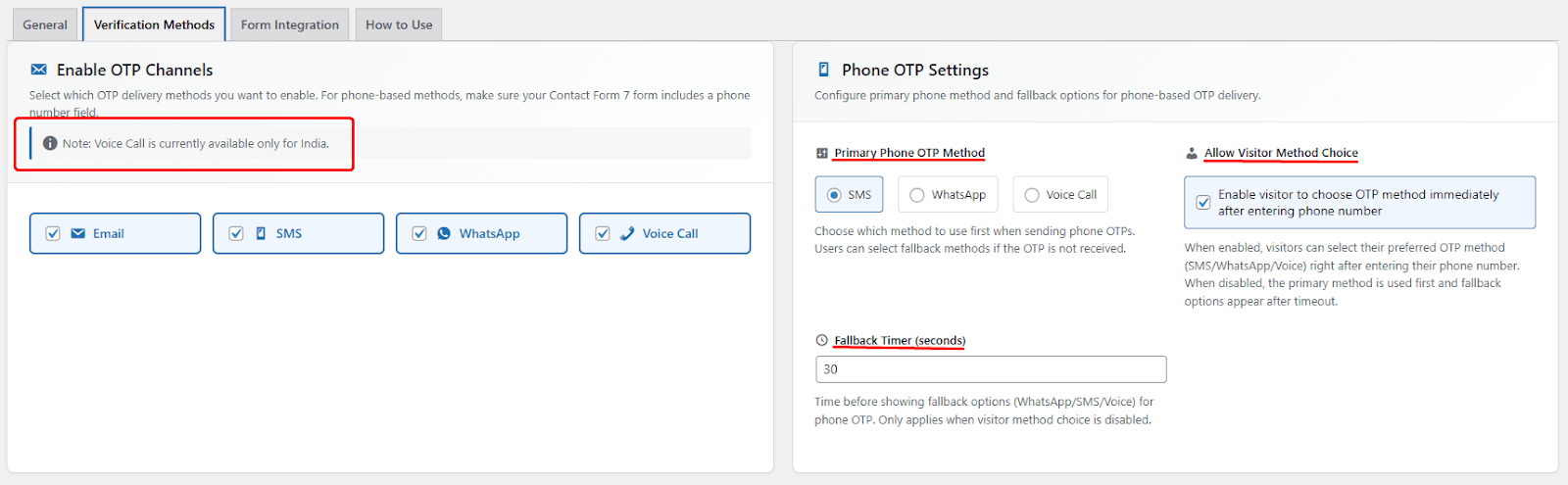
Primary Phone OTP Method
Select the method that will be used first when sending phone OTPs (SMS, WhatsApp, or Voice Call). If the OTP is not received, users can choose a fallback method.
Allow Visitor Method Choice
When enabled,website visitors can choose their preferred OTP method (SMS/WhatsApp/Voice) immediately after entering their phone number. When disabled, the selected primary method is used first, and fallback options are displayed only after a timeout.
You can pick – Email, SMS, WhatsApp, or Voice call (enable one or multiple options as needed).
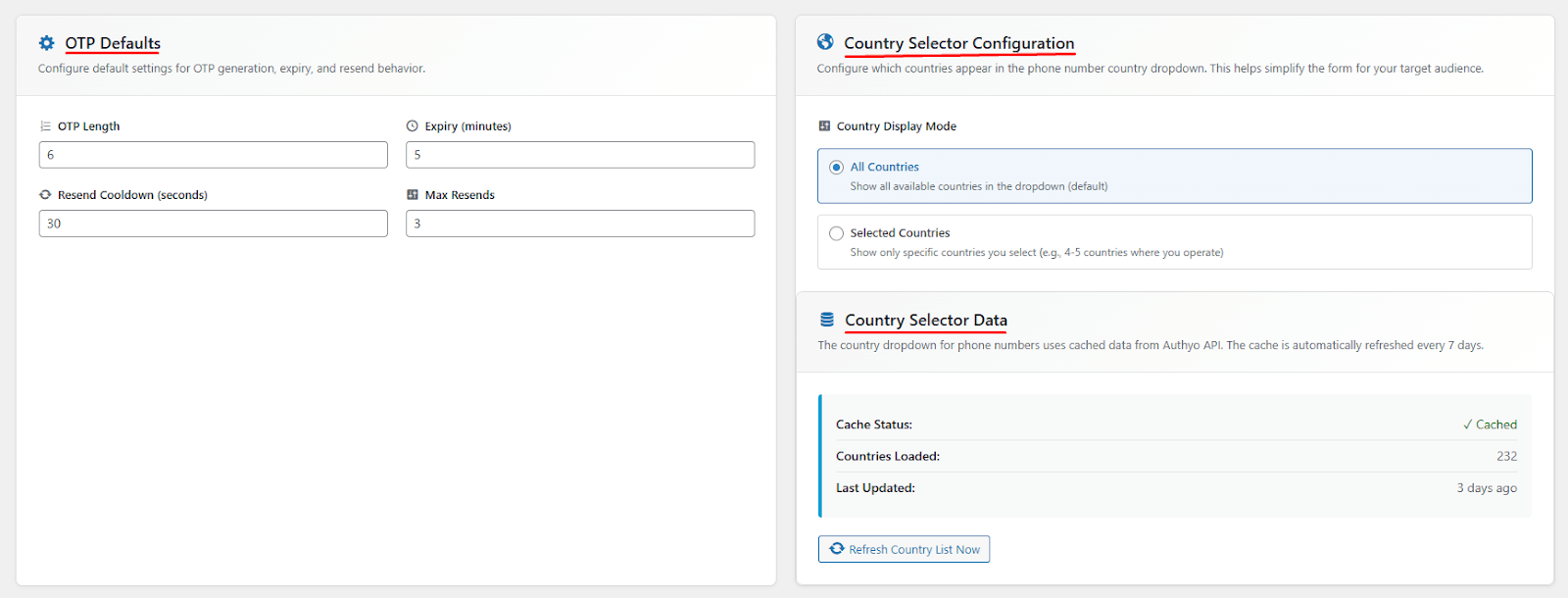
Step 8: Once you have fixed all the settings preferences for the OTP verification along with the country details, click “Save Changes.”
Note: You may select the option to verify both email and phone with the same phone number and set the OTP length expiry as needed.
Step 9: Move to the “Form Integration” tab to see your contact forms. Choose the forms where you want OTP verification to be enabled and click “Save Changes.”

Go to Contact > Add New or Edit an existing form.
In the editor, add the relevant shortcodes depending on your verification method. The shortcodes are available under the last tab, “How to use”
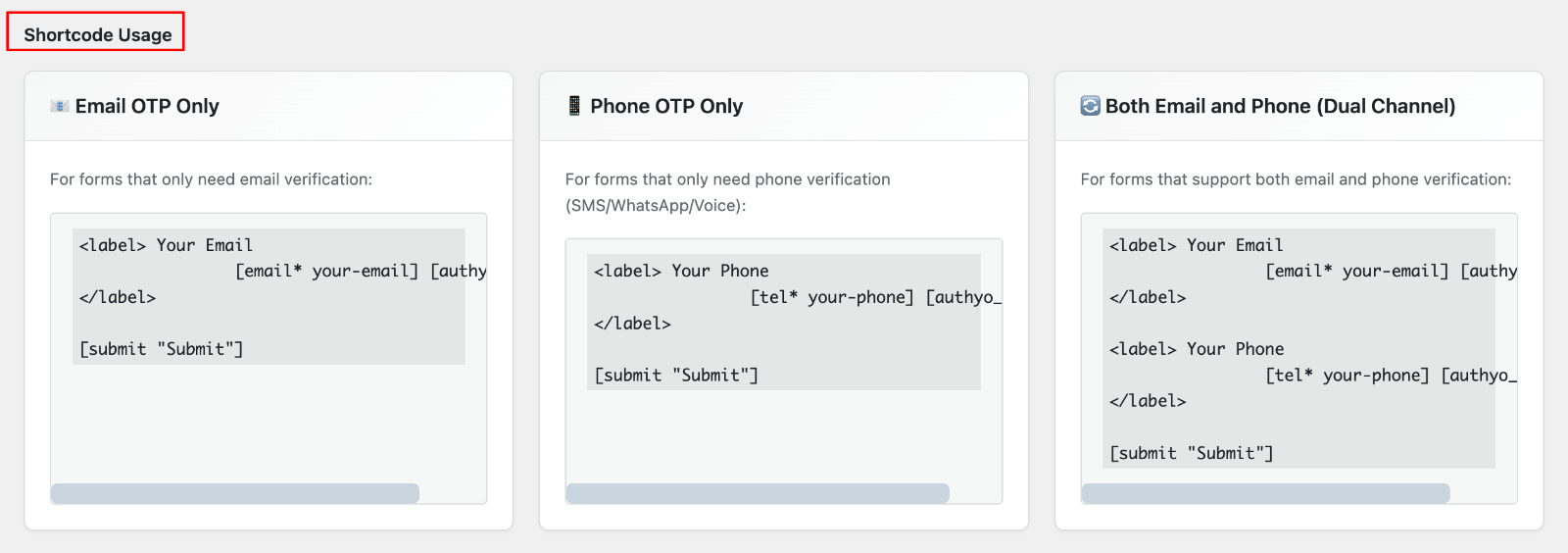
- If you choose Email verification, only use the Email OTP Only shortcode
- For phone verification via SMS, WhatsApp, or voice call, use the Phone OTP Only shortcode
- To enable dual verification, include both shortcodes.
After adding your preferred shortcode, name the form and save it.
You can now see your form integrated with Authyo OTP for contact form 7 verification. When someone uses the contact form through their email/phone, they need to press the “Send OTP Via SMS” button to receive the verification code through the selected channel.
Once your reader receives and enters the OTP successfully, they can submit the form.
Note: You will receive a complimentary $1 credit to spend. And all these settings processes can be completed in just 5 minutes.
Authyo OTP for WPForms
Authyo OTP for WPForms is a WordPress plugin that adds one-time password (OTP) verification to your WPForms forms. It reduces spam and confirms user authenticity by requiring verified email or phone submissions.
The plugin integrates with Authyo’s secure delivery service to send and verify OTPs. It supports email, WhatsApp, and voice call,sms OTPs channels in future updates.
Authyo Authentication and Notification for WooCommerce
Authyo Authentication and Notification for WooCommerce is a WordPress plugin that enhances WooCommerce stores by replacing traditional password-based login and checkout with secure one-time password (OTP) authentication using your customers’ phone numbers. helping streamline access and reduce friction for users.
It supports OTP-based login and OTP validation at checkout, enabling a passwordless experience and is fully compatible with WooCommerce, while also optionally delivering order notifications via email, SMS, and WhatsApp for better customer engagement.
Where Should You Use This OTP Verification Plugin?
If you are a Freelancer, Web Designer, e-commerce business, small business, or agency who uses the contact form, this plugin is especially useful for:
- Lead generation forms
- Contact forms are receiving spam
- Registration or signup forms
- Business inquiry forms
- Forms requiring genuine user validation
If your WordPress site is plagued by fake submissions, this OTP authentication plugin is a robust alternative to the CAPTCHA method.
Pros
- Strong OTP-based verification
- Works seamlessly with Contact Form 7
- Multiple OTP delivery options
- Improves data quality and reduces spam
- Easy to configure
Cons
- Requires an Authyo account and API key
- Slight extra step for users during form submission
- Includes small fees for OTP verification
Authyo Plugin Pricing
Authyo offers multiple flexible subscription plans, including Free, Starter, Pro, and Enterprise tiers, available on monthly and yearly billing cycles. Check the details!

FAQs
Are Authyo plugins are easy to install and configure?
Yes, Authyo plugins are easy to install and configure within WordPress. You can enable OTP verification without coding, customize OTP delivery methods, and manage verification settings directly from the WordPress dashboard.
Is the Authyo plugin suitable for small businesses, blogs and eCommerce sites?
Absolutely. Authyo OTP plugins are ideal for small business sites & blogs, startups, and WooCommerce stores. It will enhance security, reduce spam, and build user trust without impacting user experience.
Can I save money with yearly billing?
Yes! Choosing a yearly billing cycle typically offers savings versus monthly billing. You pay upfront for 10 months and receive service for the full year, which can significantly reduce your cost per OTP verification over time.
Will it affect the loading speed of my site? And is it compatible with other plugins?
No, Authyo will not affect the site’s loading speed as it is a lightweight add-on. It is compatible with WordPress Forms, Cache, and performance plugins.
Can Authyo handle high-traffic sites?
Authyo is scalable and built to handle high-volume verification requests. For websites with heavy traffic or large user bases, I would suggest you choose a higher plan to ensure fast OTP delivery and robust performance even under peak loads.
Wrapping Up: Is This Form Security Plugin Worth It?
If you’re serious about reducing spam and ensuring real submissions for your lead generation or contact form, Authyo OTP for contact form 7 is a solid solution. It’s easy to integrate, flexible in delivery options, and provides a higher level of security than traditional CAPTCHA methods.
While it adds a small extra step for users, the improvement in form quality usually outweighs this drawback. Install this plugin today and experience cleaner inboxes, safer checkouts, and higher-quality conversions with OTP-powered verification.
Note – Authyo provides a complimentary $1 wallet balance, which allows us to send approximately 500 email OTPs.