

If you want to make the Divi testimonial slider, this tutorial is for you! I will explain the steps, and if they are unclear, don’t hesitate to get my help.
I’ve used dozens of WordPress themes and modern visual page builders like Divi. One element that consistently improved conversions across my sites was a well-placed testimonial slider.
In this guide, I’m not just going to show you how to add testimonials slider in Divi-built site. I’ll show you what actually works in real-world sites, and how to optimize it for SEO and user experience.
Before getting into the details, let me summarize the benefits of adding a testimonial slider to your business website.
Disclosure: We get a commission when you buy a product via our affiliate link at no additional cost.
Table Of Contents
What is a Testimonial Slider (and Why I Actually Use It)?
A testimonial slider (testimonial carousel) is simply a rotating section that displays customer feedback dynamically instead of stacking everything vertically.
When I first started, I used static testimonials (just blocks of text). They worked, but they made pages long and visually boring.
Once I switched to a responsive testimonial carousel, I noticed two immediate improvements:
1. Users stayed longer on the page
2. My service pages converted better
A slider allows you to:
- Show multiple testimonials without clutter
- Add motion and interaction
- Keep your layout clean and modern
That’s why terms like Divi testimonial slider, testimonial carousel Divi, and customer reviews slider are so commonly searched. Let’s dig a few more benefits!
Why Include A Testimonial Slider?
I want to keep things brief! Here are the advantages of adding a Testimonial slider to your WordPress site!
- Honest reviews from your past customers will help your readers understand your credibility.
- A responsive, visually appealing slider will engage them well.
- It is an excellent opportunity to avoid overwhelming them with your text.
- It will add a professional touch to your site and ensure consistency in branding.
- When testimonials highlight your specific strengths, they will boost your sales/conversions.
- A well-designed testimonial slider will encourage visitors to spend more time on your site, which, in turn, improves your site’s SEO performance.
- You can manage this extended functionality with available plugins and keep your content fresh and relevant.
Real Benefits I’ve Seen:
- Better engagement (users interact with sliders)
- Higher trust (especially for service pages)
- Increased conversions (people believe other people)
- Improved dwell time (a subtle SEO signal)
And when you combine testimonials with review schema markup, search results can show star ratings, your listing stands out, and more users click your page.
Step-By-Step Process To Add A Testimonial Slider In Divi Site

Let me explain how to add a testimonial slider in the Divi theme!
Step 1: Log in to your WordPress Dashboard > Pages > Add New Page.
Step 2: Click the “Use Divi Builder” option.

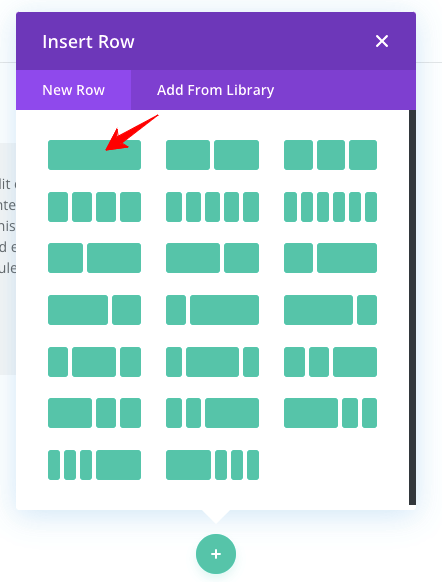
Step 3: You will now be taken to the Divi Builder page; there, select the “Build From Scratch” option. After that, I pick a single-column structure for the slider section. Here is an image for your reference.
Step 4: Search for the Slider module and add it.

Step 5: You will get the slider settings to add two slides by default. If you need more slides, you can add them by clicking “Add New Slide” + symbol. Look at the reference image below.

Step 6: Now, click the first slide’s settings icon and add the testimonial text in the “Body” section! Don’t enter the text for “Title” and “Button“.

Step 7: Add content to the Body section, and don’t forget to include the feedbacker’s name and job description.

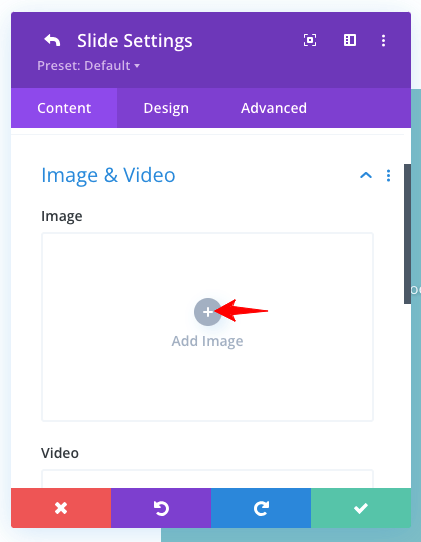
Step 8: It’s time to incorporate an image for the testimonial. Check the marked option in the following image.
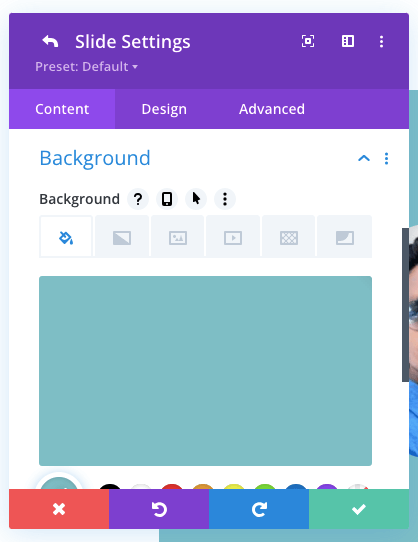
Step 9: You may modify the testimonial slider’s background color.
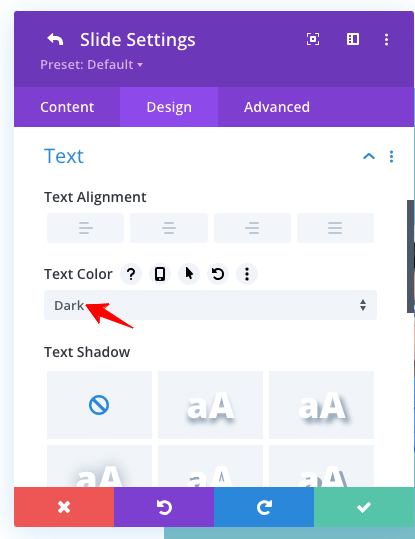
Step 10: After completing the content settings, move to the “Design” tab to adjust the Text color, Shadow, and Alignment.
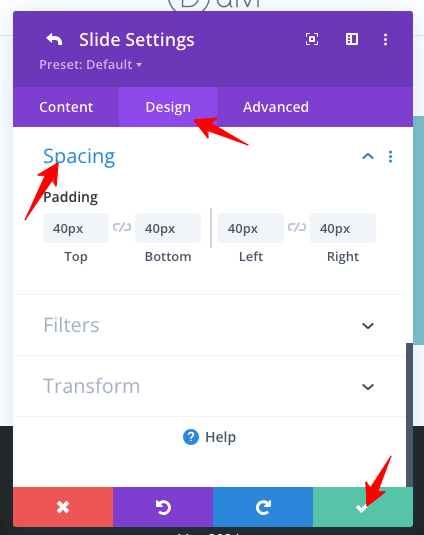
Step 11: Let’s adjust the spacing for the testimonial slider now. Look at the following image for understanding!
Step 12: Add the following CSS under the “Row Settings –> Custom CSS” section for a neat look.

.et_pb_slide_image{
width:15%;
}

.et_pb_slide_description{
width:80%!important;
}
That’s all! Follow the same procedure for the other sliders! Check out my detailed guide on how to add a Divi slider.
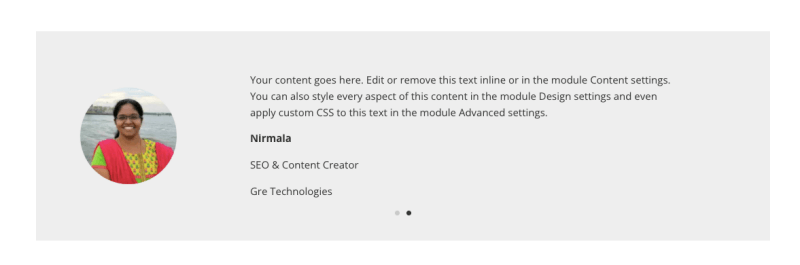
Here is the output for your view!
Alternative Way (Using Plugin)
You might ask, ” Is there any other way to add a testimonial slider to the Divi theme? Yes, there is a premium option for you! It is a Divi Pixel plugin.
It offers advanced settings and customizable options to add a testimonial slider to your site. Get this paid plugin from the Divi Marketplace, as it is not included with your Divi membership.
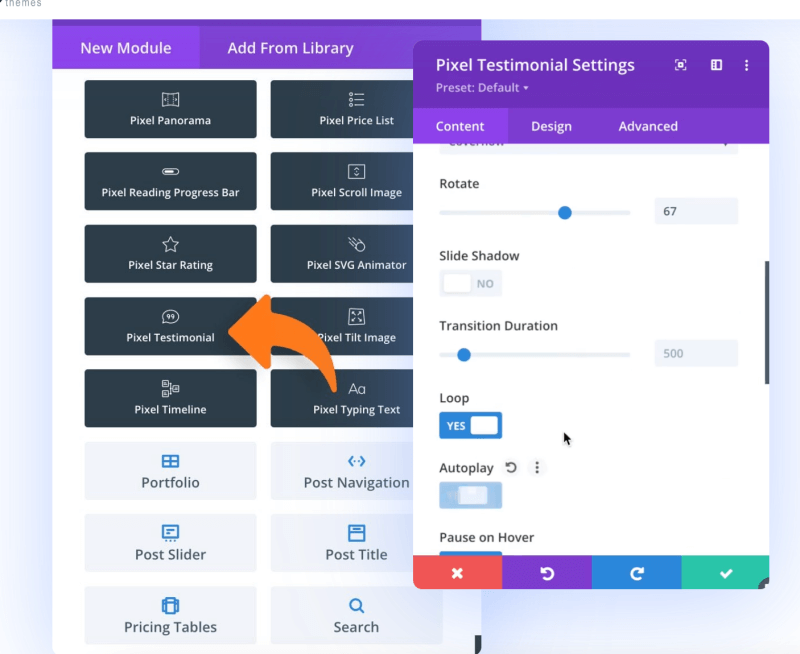
As you can see, this tool has detailed settings to personalize your testimonial slider. It costs $169 and comes with 30 days money-back guarantee.
You may also try other third-party plugins like Divi Flash and Strong Testimonial to avoid spending time on module customization.
Common Problems (And What Actually Fixes Them)
From my experience, these issues come up often:
1. Slider Not Working
Usually caused by Plugin conflicts and an outdated theme
Fix: Update everything and clear the cache.
2. Autoplay Not Working
Most of the time: It’s disabled in settings, JavaScript is blocked, or Mobile Layout Issues
Fix: Adjust breakpoints, test on real devices
3. Slow Loading
Almost always due to Large images and too many animations
Fix: Optimize images and avoid flashy animations
Frequently Asked Questions
How can I make my testimonial slider autoplay in Divi?
Autoplay is typically available when you use a testimonial slider plugin. You can enable it from the slider settings by turning on autoplay and adjusting the transition speed. If you’re using a custom-built slider, you’ll need to configure autoplay using JavaScript
How do I add star ratings in the Divi testimonial slider?
The default Divi Testimonial module does not include star ratings.
To add them, you can use a plugin that supports star ratings or add custom HTML or icons inside the testimonial content. For SEO, I recommend combining this with review schema markup so search engines understand the rating data.
Does a testimonial slider affect website speed?
Yes, it can! especially if you use heavy plugins, large images, or excessive animations. To keep your site fast, use optimized images, enable lazy loading, and avoid unnecessary effects. A lightweight, well-optimized testimonial carousel will not significantly impact performance.
Is it better to use the Divi testimonial module or plugin?
Use the Divi module for simple layouts; Use a plugin for professional sliders.
If your goal is better UX, SEO, and conversions, a plugin-based testimonial carousel Divi setup is the better choice.
Wrapping Up
A well-designed testimonial slider will boost your credibility and overall user experience. Divi theme builder has an extensive set of modules to build interactive websites, and the slide is one of them. It can be used to create the testimonial sliders for your business site.
It will also keep your visitors on your pages longer, which boosts your dwell time and improves your SEO. So, you have learned how to add testimonials slider in Divi Theme Builder using my step-by-step guidelines, images, and a video tutorial.
I suggest you design it effectively with proper planning, as it is a trust-building tool. Don’t forget to customize it for your audience and optimize it for SEO. Catch me through the comments if you need any design help. I’ll help you get things done.
Other Divi Theme Tutorials
How To Create A Sticky Header in Divi?